
Connecting
- Go to https://app.emby.media and click 'Sign in with Emby Connect'
Recommended Settings
These are other settings that I change in each section. You should select the option that you prefer, any examples are my personal preferences.
I Suggest Remove Anime and Foreign from your home screen & English subtitles only when language isnt
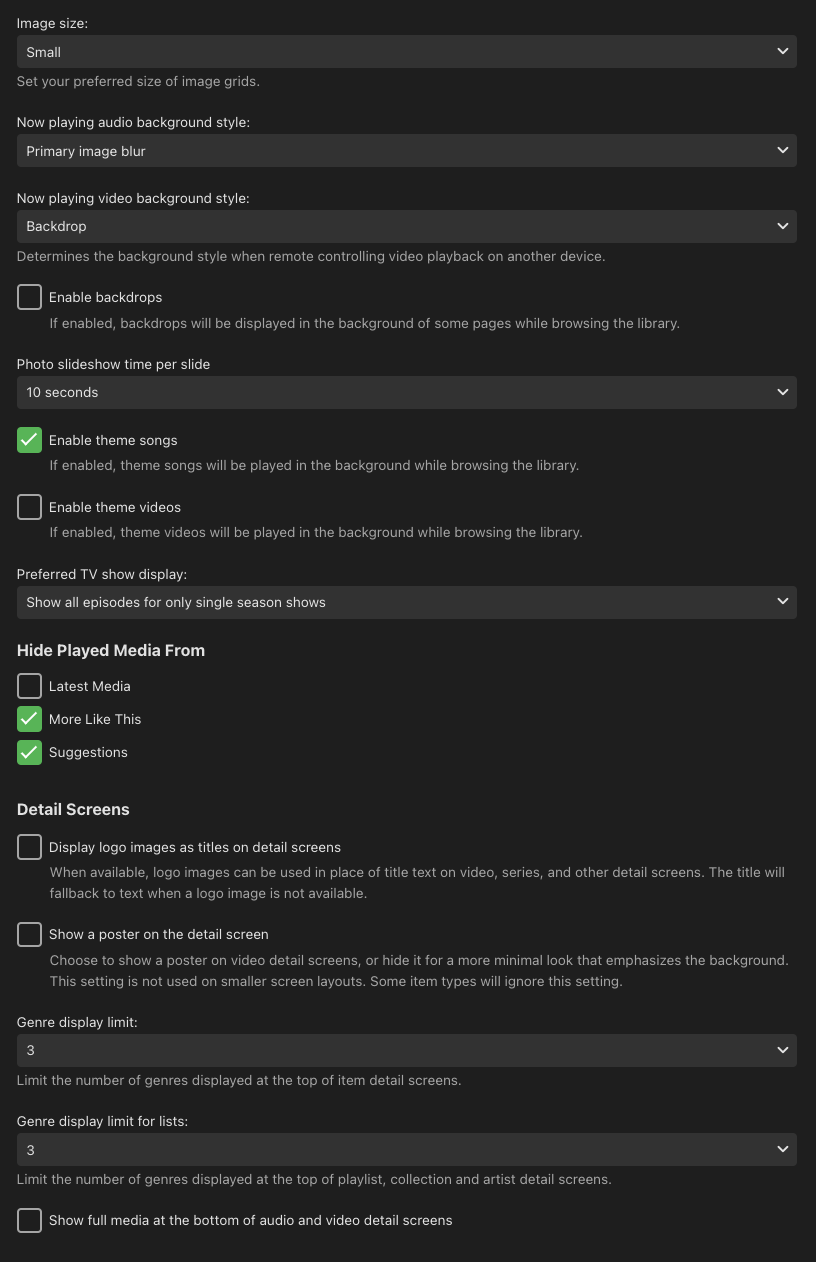
Display
Settings:
-
Image Size: Smaller
-
Enable theme songs: Unticked
-
Hide Played Media From Latest Media: Unticked More Like This: Ticked Suggestions: Ticked
-
Detail Screens Both boxes Unticked
-
Genre display limit: 3
Screenshot:
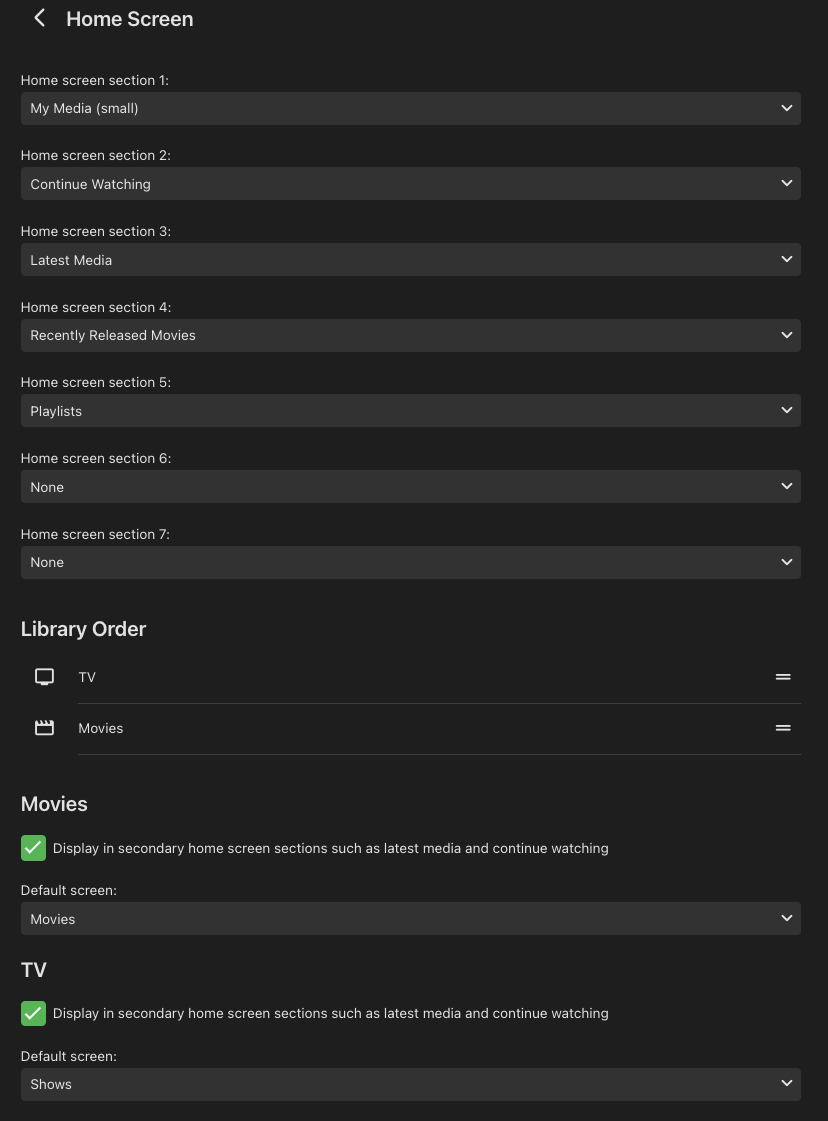
Home Screen
Chose whats displayed on the home screen and in which order.
Unticking a library will remove its 'Latest' row from your home screen, suggested for Anime and Foreign if you dont watch them.
Screenshot:
Playback
Video
Change all options from Auto to the highest option available
- Home network quality: 4K - 200 Mbps
- Internet quality: 4K - 200 Mbps
- Chromecast streaming quality: 4K - 200 Mbps
Depending on your device some of these options may not exist.
Audio
- Preferred Audio Language: English
- Play default audio track regardless of language: Unticked
Advanced
- Play next episode automatically: Unticked
Subtitles
Setting the subtitle language to English and mode to Smart will make subtitles only appear if the audio is not in English or when a scene is in a foreign language.
- Preferred subtitle language: English
- Subtitle mode: Smart