
There are various settings you can change to customize / improve your experience.
The menus may look different depending on your device but similar to the screenshots below.
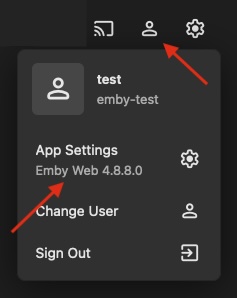
Click the person icon in the top right, then 'App Settings' in the menu that appears:
Popular Options
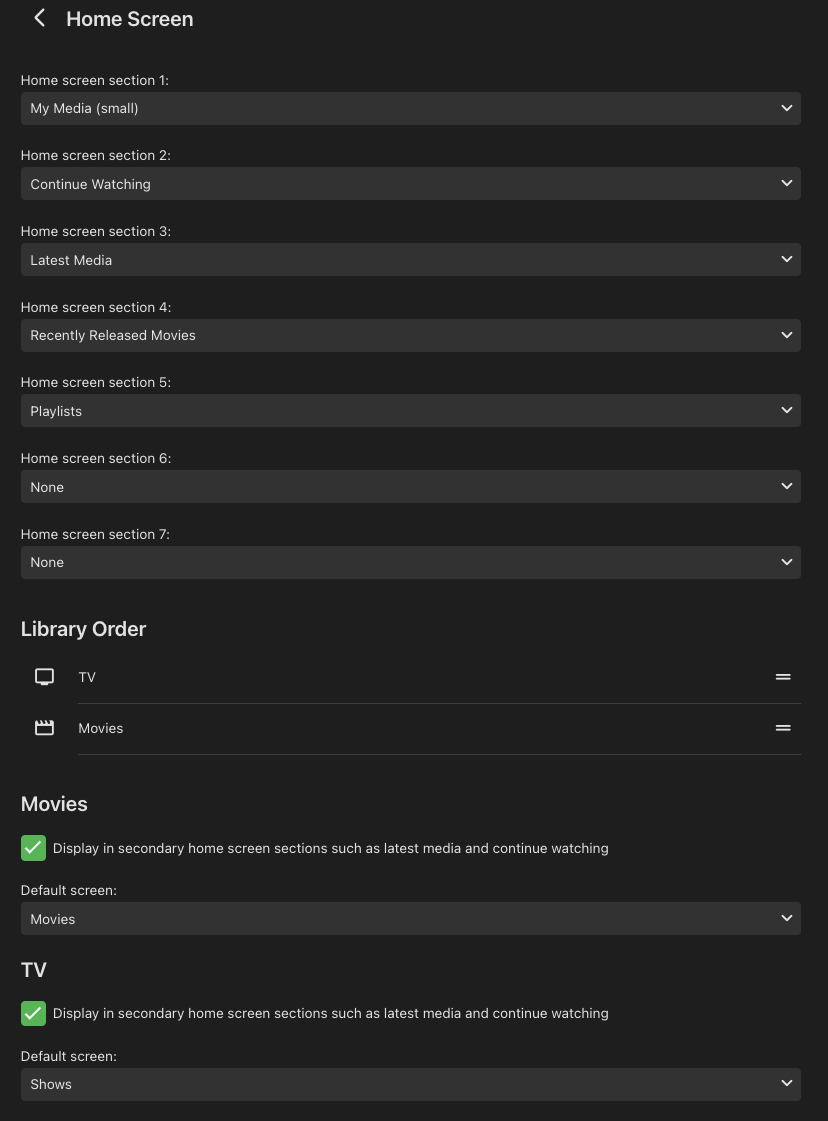
- Change order of libraries Home Screen -> Library Order -> Drag the libraries up/down into your order preference
- Hide/remove unused libraries Home Screen -> Untick each library you dont want to have a 'latest' row on the home screen.
Audio and Subtitle language are changed to English for you when account activated.
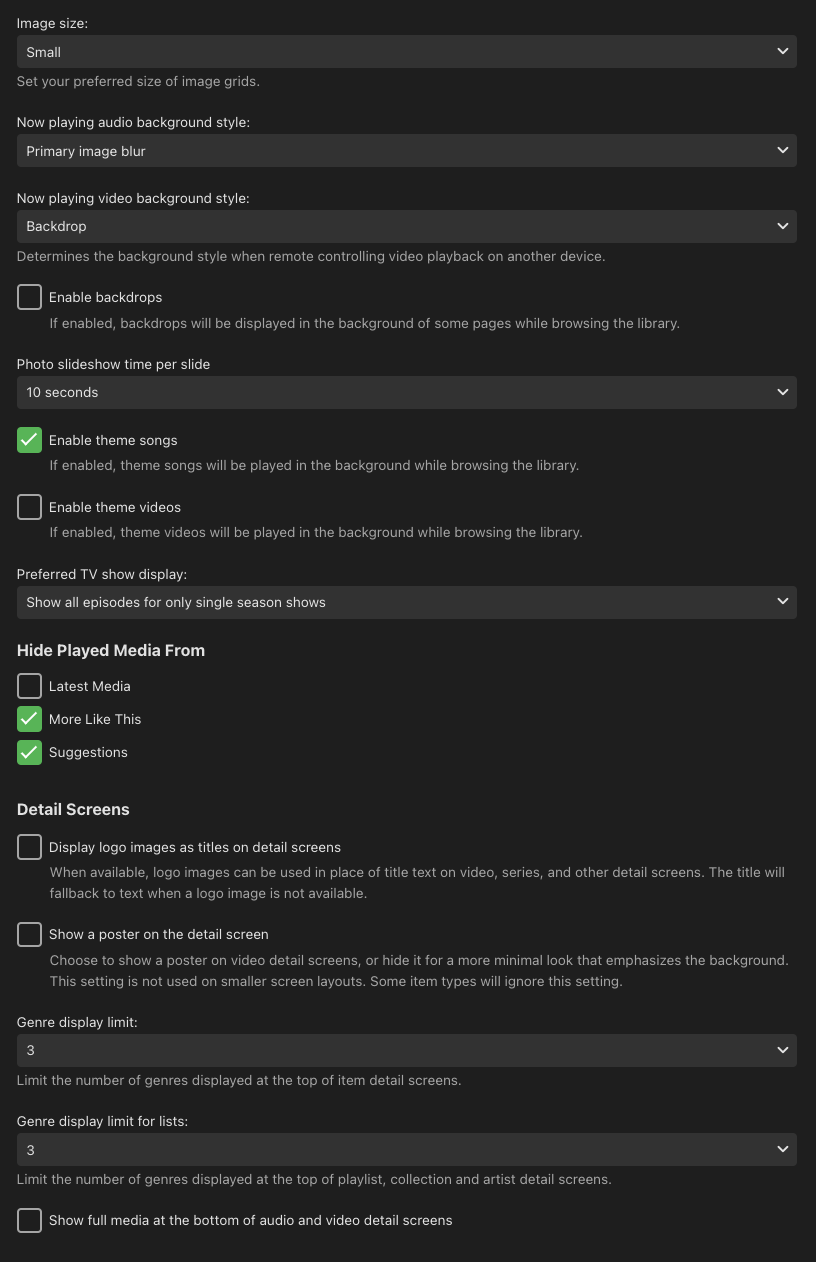
Display
Settings:
-
Image Size: Smaller
-
Enable theme songs: Unticked
-
Hide Played Media From Latest Media: Unticked More Like This: Ticked Suggestions: Ticked
-
Detail Screens Both boxes Unticked
-
Genre display limit: 3
Screenshot:
Home Screen
Chose whats displayed on the home screen and in which order.
Unticking a library will remove its 'Latest' row from your home screen, suggested for Anime and Foreign if you dont watch them.
Screenshot:
Playback
Video
Changing quality is disabled on the server. All files will play at full original quality. Using these settings can help playback start faster. These settings needs to be changed on EACH device independently.
Change all options from Auto to the highest option available
- Home network quality: 4K - 200 Mbps
- Internet quality: 4K - 200 Mbps
- Chromecast streaming quality: 4K - 200 Mbps
Depending on your device some of these options may not exist.
Audio
- Preferred Audio Language: English
- Play default audio track regardless of language: Unticked
Advanced
- Play next episode automatically: Unticked
Subtitles
Setting the subtitle language to English and mode to Smart will make subtitles only appear if the audio is not in English or when a scene is in a foreign language.
- Preferred subtitle language: English
- Subtitle mode: Smart